

Each section on this page solves one common self-hosting task and builds on the two-container setup from
Self-hosting with Docker. Replace resume.example.com with your own domain, and keep the
.env file from that guide unless a section says otherwise.
What every reverse proxy needs#
Whatever proxy you use, configure it so that:
- The whole site goes to the app. The app serves pages, the API (
/api/), the MCP server (/mcp), uploads and assets from one address. Don’t split or rewrite paths. APP_URLis the public address, for exampleAPP_URL="https://resume.example.com".- Client-supplied IP headers are replaced or removed. The Node server uses its connection’s remote address for
IP-based limits, such as sign-in attempts and public resume passwords, and ignores forwarded IP headers. Behind a
reverse proxy, users share the proxy’s IP-based limit. Vercel uses the client address supplied by its deployment
adapter. The examples below also replace
X-Forwarded-Forand remove alternate IP headers at the proxy. - Streaming responses aren’t buffered, and idle reads are allowed for at least 5 minutes. Assistant replies and live updates stream from the server, and a single Assistant reply can take up to 4 minutes.
- Request bodies of at least 50 MB are accepted. People can attach files of up to 25 MB to the Assistant, and the browser sends them base64-encoded, which makes them about a third larger.
Once a proxy is in front, don’t publish the app’s port 3000 on a public interface, or clients can bypass the proxy’s
HTTPS and access controls. Remove the ports entry, or bind it to 127.0.0.1:3000:3000.
Caddy#
Caddy gets and renews HTTPS certificates on its own and streams responses without extra settings, so it needs the least configuration.
Point your domain’s DNS at the server, set APP_URL="https://resume.example.com" in .env, and run
docker compose up -d. Caddy replaces any X-Forwarded-For header a client sends with the real client address, and
the header_up lines drop the other IP headers.
Traefik#
Traefik reads its routes from Docker labels and gets certificates from Let’s Encrypt.
Add ACME_EMAIL="you@example.com" to .env for Let’s Encrypt notices. Traefik skips containers whose health check
fails, so it only routes to the app once /api/health answers 200.
This example serves one application hostname. To add a short alias or let users connect their own domains, follow Sharing domains; custom domains also need DNS verification and the HTTP provider.
nginx#
With nginx you manage certificates yourself, for example with
Certbot. Add this service to the compose file from the Docker guide, and remove the
ports entry from the reactive-resume service:
Use an existing PostgreSQL server#
If you already run PostgreSQL, or use a managed database, leave out the postgres service and point DATABASE_URL
at your server. Create an empty database and a user that owns it; the app creates its tables on first start.
- Use
sslmode=verify-full(or your provider’s equivalent) whenever the connection leaves the host, so the app checks the server’s certificate. - If
DATABASE_URLpoints at a connection pooler, add a direct connection inDATABASE_MIGRATION_URLfor startup migrations. - Never expose PostgreSQL to the internet without TLS and a firewall.
Store uploads in S3-compatible storage#
S3 storage lets you drop the /app/data volume, and it’s required if people attach files in the Assistant. The app
switches to S3 once the access key, secret key and bucket are all set. The bucket can stay private: the app reads
objects with its own credentials and serves them itself.
The bucket must exist before the app starts. Check /api/health: its storage entry should show "type": "s3" and
"status": "healthy". Files already in /app/data aren’t moved; copy them into the bucket, keeping their paths, if you
switch an existing instance.
Add Redis and turn on AI#
Personal AI providers need ENCRYPTION_SECRET; shared AI configuration does not.
Redis is optional on a single server, but with it an Assistant reply keeps
streaming after a page reload. Add a Redis service to your compose file:
Add redis_data: under volumes:, and add redis to the app’s depends_on with condition: service_healthy. Then
add to .env:
Run docker compose up -d. People can now add their own AI provider; see Connecting an AI provider
and Using the Assistant.
Redis holds streaming Assistant replies, which include people’s messages. Keep it on the private Docker network and don’t publish its port.
Use a local AI model with Ollama#
To keep AI requests on your own hardware, run Ollama next to the app. By default the app only
accepts public https:// provider addresses, so you turn on a flag that allows local ones.
FLAG_ALLOW_UNSAFE_AI_BASE_URL lets every user make your server send requests to any address on your network. Only
turn it on for an instance where you trust every user, such as a personal or family server.
Add Ollama to compose.yml
Add ollama_data: under volumes:, start it, and download a model:
Allow local AI addresses
Add to .env, next to the ENCRYPTION_SECRET from the previous section:
Run docker compose up -d to apply it.
Add the provider in Reactive Resume
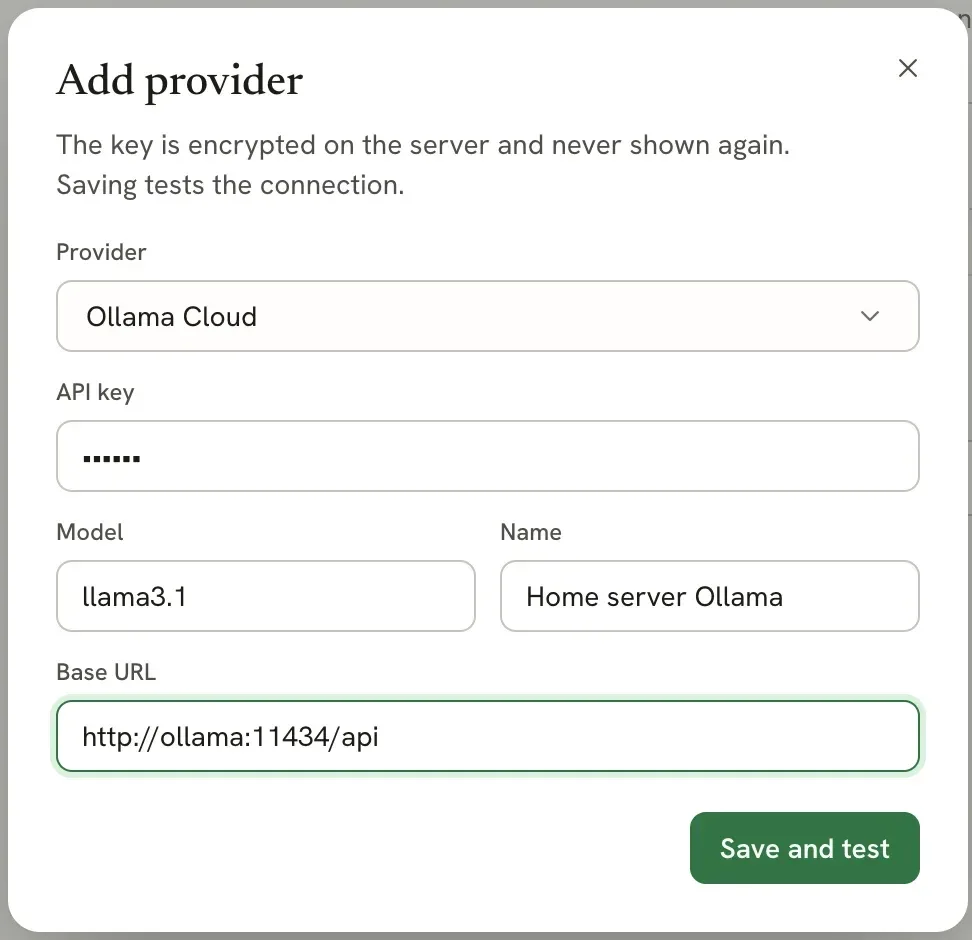
Open Settings, then AI & developer, and select Add provider. Choose Ollama as the provider and fill in:
- API key: leave empty for a local Ollama server that doesn’t require authentication.
- Model: the model you pulled, for example
llama3.1. - Base URL:
http://ollama:11434/api
Select Save and test. The app saves the provider once Ollama answers.
Any server with an OpenAI-compatible API works the same way: choose OpenAI-compatible and enter its address, such
as http://llama-server:8080/v1.
Run a private instance#
For a personal or team server that nobody else can join:
- Create your own account (and your team’s) first.
- Add
FLAG_DISABLE_SIGNUPS="true"to.envand rundocker compose up -d.
New sign-ups are then refused, by email and by social sign-in. People who already have accounts sign in as usual.
To allow sign-in only through your company’s identity provider, set up a custom OAuth provider (see
Single sign-on), then add FLAG_DISABLE_EMAIL_AUTH="true". This removes email and password
sign-in, along with password resets.
Show one resume at your root address#
To use your instance as a personal resume site, set ROOT_RESUME_ID. Visitors to / then see that resume’s public
page instead of the home page.
Make the resume public
In the editor, select Share, then Publish. See Sharing your resume publicly.
Copy the resume's ID
The ID is the last part of the editor’s address: https://resume.example.com/builder/<resume-id>.
Set the variable and restart
Run docker compose up -d.
- The resume’s own settings still apply: a password still protects it, and Visitors can download the PDF still
controls the download button. Its usual
/<username>/<slug>address keeps working. - Renaming the address or username doesn’t break it; the ID stays the same.
- If the resume is deleted or its public link is turned off,
/shows an unavailable page, even to you. - Sign-in and your documents stay at their usual addresses. The root page follows the resume’s Show in search engines setting.
Remove the variable, or leave it empty, and restart to bring back the home page.
Run several app containers#
To run more than one app container, for high availability or Docker Swarm, every container must share state:
- The same database,
AUTH_SECRETandENCRYPTION_SECRET. - Redis, set in
REDIS_URL, so rate limits, stopping an Assistant reply and live updates work across containers. - S3-compatible storage instead of
/app/data, so every container sees the same uploads. - The same
DEPLOYMENT_NAMESPACE(the default,default, is fine), or leave it unset everywhere.
Migrations are safe to start in parallel: containers wait for each other, and only one applies changes. A Docker Swarm service then looks like this:
Deploy it with docker stack deploy -c compose-swarm.yml reactive-resume, next to your PostgreSQL, Redis and S3
services, and route traffic to it with your proxy.
Share your setup#
Have a working setup that isn’t covered here, such as Podman, Portainer or Cloudflare Tunnel? Open a pull request that adds it to this page. Include when someone would use it, the complete configuration, and the environment variables it needs.
Related pages#
- Environment variables: every setting, with defaults.
- Job search and AI: connect Firecrawl, optional SearXNG and an AI provider.
- Self-hosting with Kubernetes: the same setup as Kubernetes manifests.
- Single sign-on: Google, GitHub, LinkedIn and custom OAuth providers.