

A passkey lets you sign in with the same check you use to unlock your device: a fingerprint, your face, a PIN or a hardware security key. There is no password to type or leak, and a passkey only works on the real Reactive Resume site, so it resists phishing.
Before you start#
You need a device or password manager that supports passkeys. Recent versions of macOS, iOS, Windows, Android, Chrome, Safari, Edge and Firefox all do, as do password managers such as 1Password and Bitwarden.
Your email address must be verified, and you must have signed in within the last 24 hours. If either check fails, verify your email or sign out and sign in again before adding a passkey. Password recovery removes existing passkeys; enroll them again afterward.
Add a passkey#
Open Sign-in & security
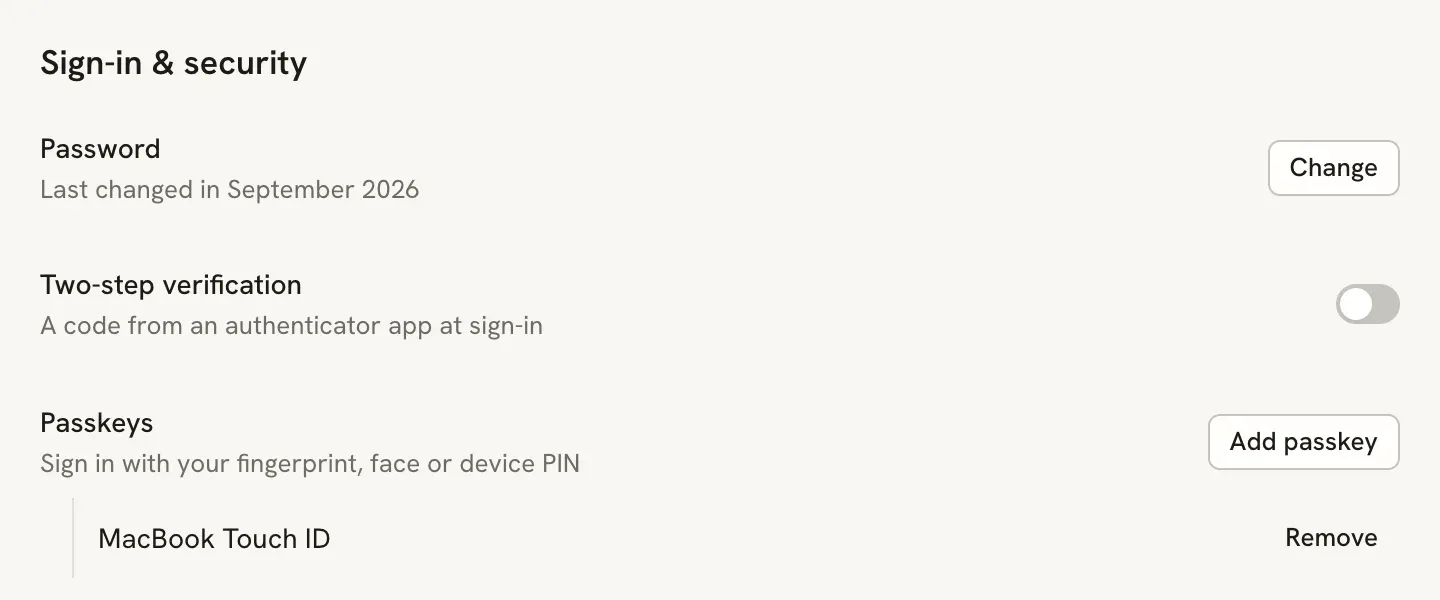
Select your name at the bottom of the sidebar, then Settings. On the Account page, find Passkeys under Sign-in & security.
Select Add passkey
Your browser or device asks you to create a passkey. Follow its prompt: touch the fingerprint sensor, look at the camera, enter your device PIN, or insert and touch your security key.
Name the passkey
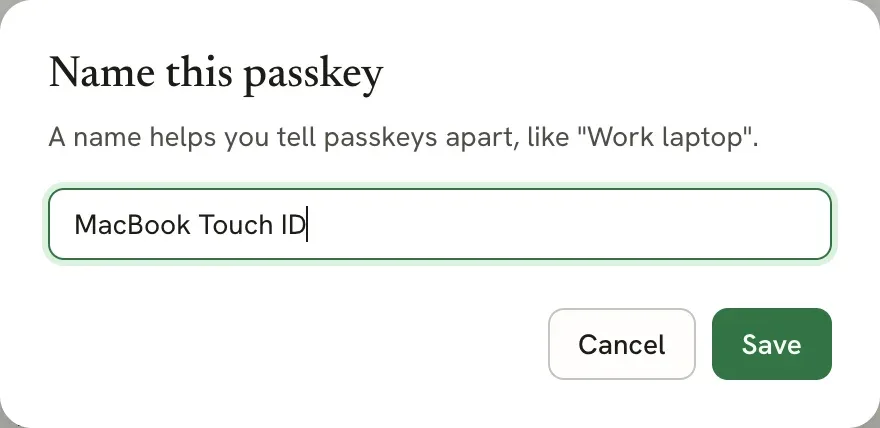
In Name this passkey, type a name you will recognize later, such as “MacBook Touch ID” or “Work laptop”, and select Save.
The passkey appears under Passkeys. If you skip the name, it is listed as Unnamed passkey. You can add a passkey on each device you use.
Sign in with a passkey#
On the sign-in page, select Passkey under or continue with and confirm on your device. Many browsers also suggest your passkey when you click the Email address field. A passkey sign-in doesn’t ask for a password or a two-step code.
Remove a passkey#
Select Remove next to the passkey, then confirm Remove. It can no longer sign you in. To finish the cleanup, also delete it from your device or password manager.
Rename a passkey#
Select Rename next to the passkey, enter its new name in Name this passkey, and select Save.
Related guides#
- Signing in: all the ways to get into your account.
- Setting up two-step verification: a second check for password sign-ins.