

Linking a social account lets you sign in with one click instead of typing a password. You can link several providers to the same account and disconnect them at any time.
Before you start#
Social sign-in only works when the site has set it up. On rxresu.me the available providers appear in Settings → Account. On a self-hosted copy you may see none, some, or a provider named after your organization’s sign-in service. If a provider isn’t listed, it isn’t available on that site.
Connect a provider#
Open Sign-in & security
Select your name at the bottom of the sidebar, then Settings. On the Account page, scroll to Sign-in & security.
Select Connect
Each available provider has its own row, such as Google, GitHub or LinkedIn. Select Connect next to the one you want.
Approve the request
Sign in to the provider if asked, and allow access. You return to Settings → Account, and the row now reads Connected.
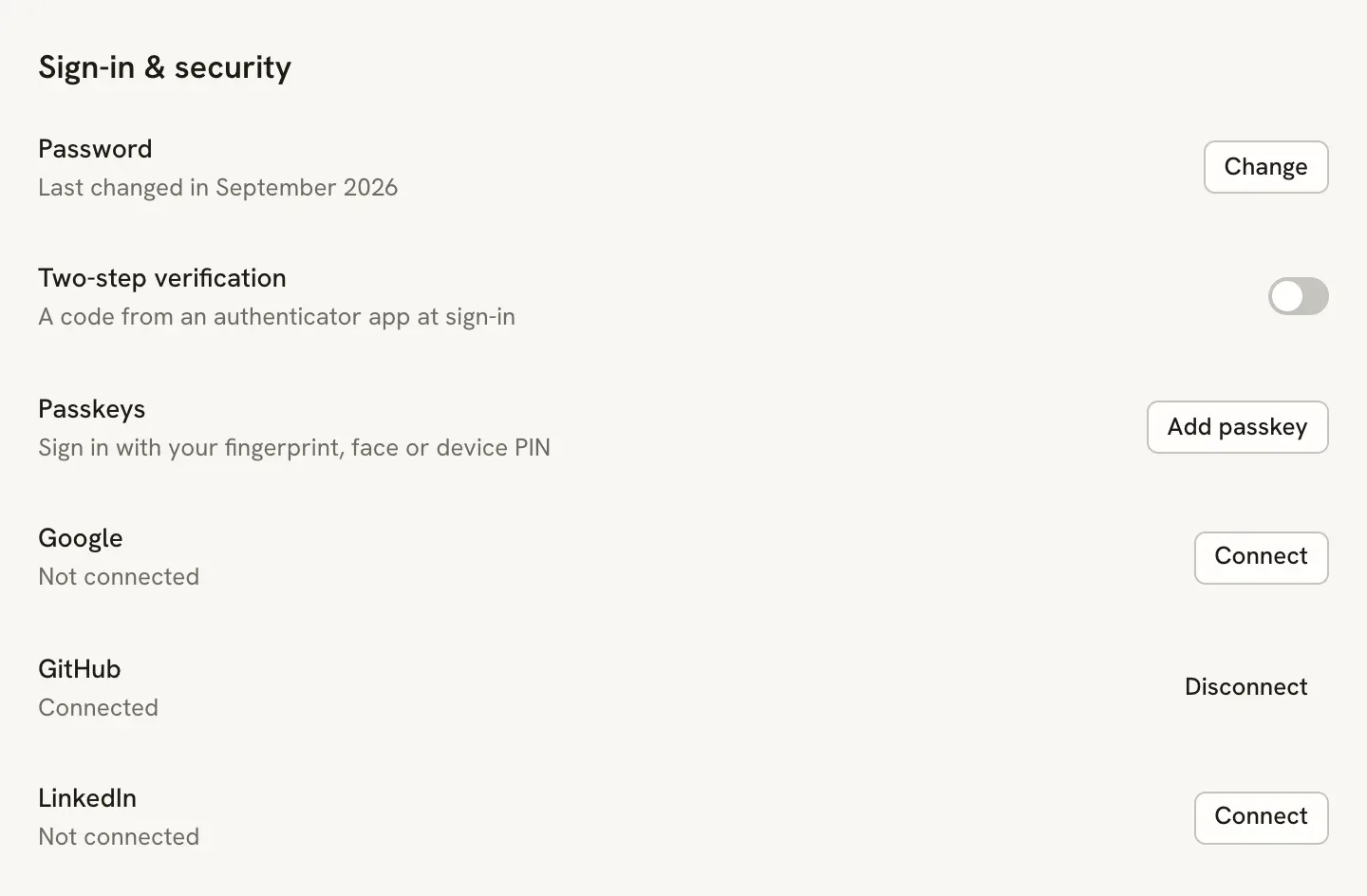
From now on, select that provider’s button on the sign-in page to get in.
If you sign in with Google, GitHub or LinkedIn using the same email address as your existing account, Reactive Resume links the provider to that account when the email is verified both in Reactive Resume and by the provider. Otherwise, sign in to your existing account and select Connect in settings, or verify the email before trying again.
Disconnect a provider#
In Sign-in & security, select Disconnect next to a connected provider. You can no longer sign in with it, but your account and documents stay as they are.
You can’t disconnect your last sign-in method. If you signed up with a social account and have only one provider, set a password or connect another provider first. A passkey doesn’t count here.
Related guides#
- Signing in: all the ways to get into your account.
- Setting up passkeys: sign in with your fingerprint, face or device PIN.
- Single sign-on for self-hosters: how the site owner turns providers on.