

Your applications start with six standard stages: Saved, Applied, Screening, Interview, Offer and Closed. You can rename and recolor them, change their order, and add your own, such as Take-home assignment or Ghosted. Your stages appear in the List, Board, the details sheet, the application workspace and the mobile app.
How custom stages count#
Every stage you add counts as one of the six standard stages. That choice decides how the application behaves:
| Counts as | What it means |
|---|---|
| Saved | Not applied yet. No documents are recorded as sent. |
| Applied | Sent. The documents you confirm are saved as sent, and the “No reply in n days” reminder can appear. |
| Screening | Sent and heard back. |
| Interview | Sent and interviewing. |
| Offer | An offer is on the table. |
| Closed | Finished. It’s hidden until you turn on Show closed, and it has no next step. A Closed stage can also preset its outcome. |
For example, Take-home assignment could count as Interview, and Ghosted counts as Closed with the outcome No response. Insights uses what each stage counts as, never its name or position, so renaming or reordering stages doesn’t change your numbers.
What a stage counts as can’t be changed after you add it. To change it, add a new stage and remove the old one.
Open your stages#
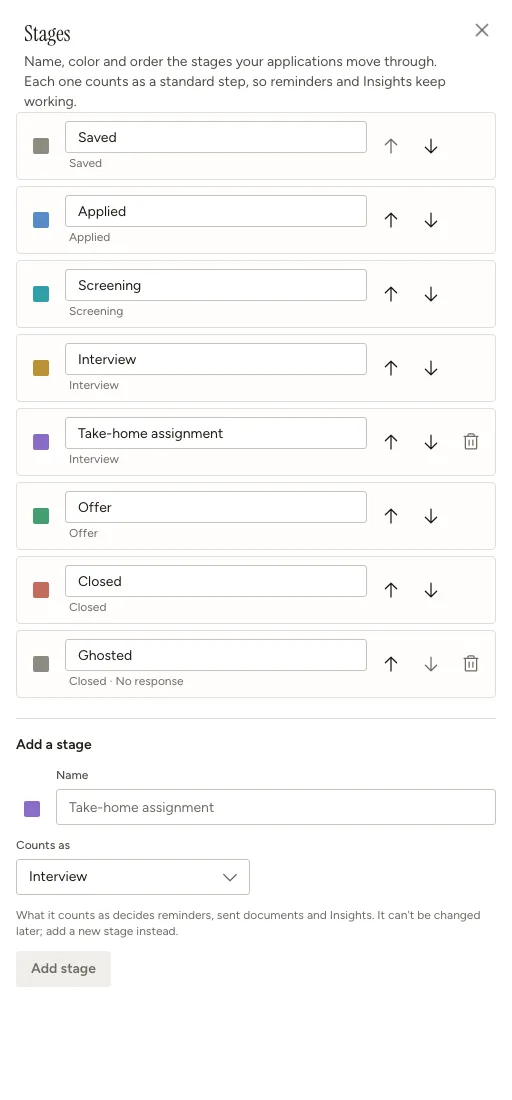
On the Applications page, select the Manage stages button (the sliders icon) next to Save job. The Stages sheet lists your stages in board order.
Rename or recolor a stage#
- To rename, edit the name in the list and press Enter, or select elsewhere. Press Esc to cancel. Names can be up to 80 characters.
- To recolor, select the color square at the start of the row and pick a color.
You can rename and recolor the standard stages too. They keep their meaning.
Change the order#
Use the Move up and Move down buttons on each row. The order sets the columns on the Board, the steps in the details sheet and what Move to next stage offers. Closed stages are skipped by Move to next stage; close an application with Close application… instead.
Add a stage#
Name it
Choose what it counts as
Choose one of the six standard stages under Counts as. For a Closed stage, choose an Outcome, or Ask each time to pick the reason whenever an application is closed there.
Select Add stage
To add a Ghosted stage in one step, select Add Ghosted (closed, no response). Applications moved there close with the outcome No response.
You can have up to 40 stages.
Combining a guest account with an existing account must also fit this limit. If it would exceed 40 stages, sign-in stops and keeps your guest session and data available. Remove unused custom stages before trying again.
Remove a stage#
Select Remove (the trash icon) on a stage you added, choose where its applications go, and select Remove stage. Only stages that count the same, with the same preset outcome, can take them. If there isn’t one, add it first. Standard stages can’t be removed.
Removing a stage doesn’t delete applications or their history; earlier activity still shows the name the stage had.
Use your stages#
- Board: each stage is a column. Drag a card between columns, including between two stages that count the same. Each card’s ⋯ menu has Move to… and Close… for the keyboard.
- List: applications are grouped by stage. Select rows to move or close them together.
- Details sheet: select a stage in the stepper, or Move to next stage. With many stages, the stepper scrolls sideways. Close application… lets you pick a Closed stage you added.
- Adding an application: choose any of your Saved, Applied or Interview stages.
- Edit details…: the Stage field lists all your stages.
Moving between two stages that count the same, such as Interview and Take-home assignment, is added to the activity history. It doesn’t reset the “No reply” reminder or change your applied date.
Closing an application pauses its Career schedules and pending notifications. Reopening resumes them; an overdue schedule can run on the next scheduler tick. Review or pause schedules before reopening if you don’t want them to resume. An email already being sent cannot be recalled.
A warning when you’ve been ghosted before#
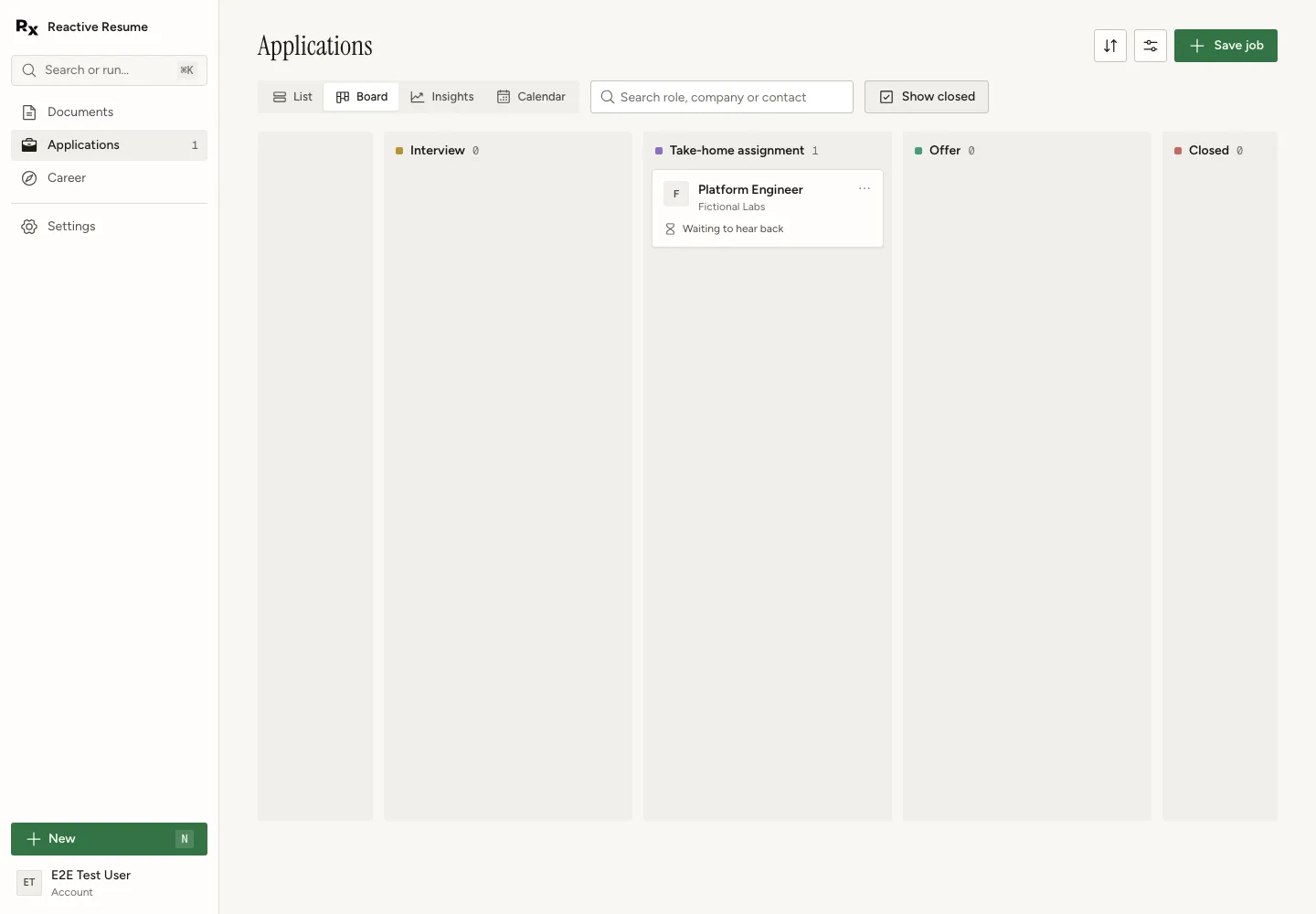
When you save a job or mark it as applied, Reactive Resume checks your earlier applications to the same company that ended with No response. If it finds any, it lists them so you can decide whether to apply again. It’s only advice: nothing is blocked. Company names are matched as written, ignoring capitals and extra spaces, so a differently named branch of the same company isn’t recognized.
Recorded No response outcomes remain available for this warning after you reopen an application. Outcomes cleared before outcome history was introduced cannot be recovered.
Older servers#
If your self-hosted server doesn’t support custom stages yet, the Applications page uses the six standard stages and the Manage stages button is hidden. Update the server to use custom stages.
Related guides#
- Tracking job applications: the List, Board, Insights and Calendar views.
- Managing an application: move, close and reopen one application.
- Importing applications from CSV: match stage names in a file to your stages.