

This guide covers every way to get into your account, including what to do when you have forgotten your password or lost your authenticator app.
Sign in with your password#
Open the sign-in page
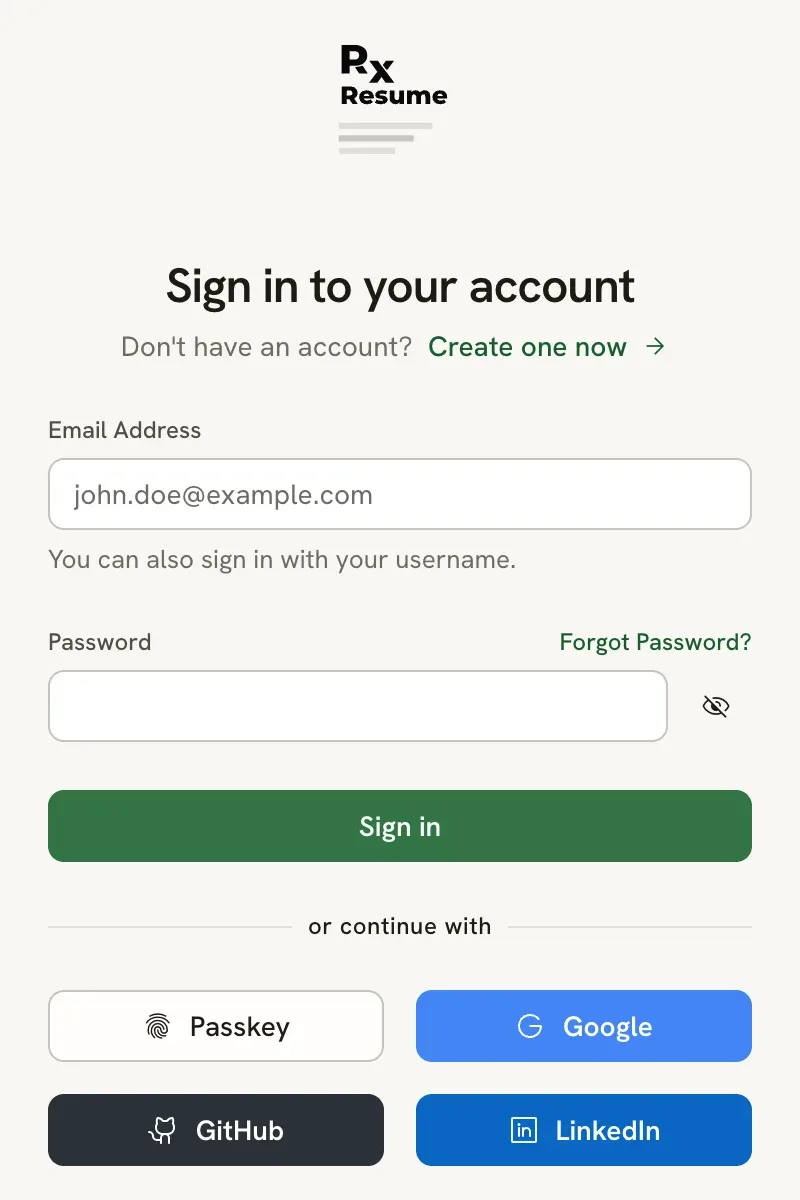
Go to rxresu.me and select Build your resume. If you are not signed in, Reactive Resume takes you to Sign in to your account.
Enter your email or username
Enter your password and select Sign in
Select the eye icon next to the field to check what you typed.
If you have turned on two-step verification, Reactive Resume asks for a code next. See Enter a two-step code below.
Sign in with a passkey#
If you have added a passkey, select Passkey under or continue with and confirm with your fingerprint, face, device PIN or security key. Many browsers also offer your passkey as a suggestion when you click the Email address field.
Signing in with a passkey skips the password and the two-step code.
Sign in with Google, GitHub or LinkedIn#
Select the provider’s button and approve the request on its site. The buttons appear only when the site has set them up. Self-hosted copies may show a single button named after your organization’s sign-in service instead.
A social button signs you in to the account that is linked to that provider. If no account uses that email yet, a new one is created, unless the site has turned off new sign-ups. An existing account with the same email is linked automatically only when the provider confirms the email address is verified; otherwise, sign in and link the provider from Settings.
Reset a forgotten password#
Select Forgot password?
The link sits next to the Password label on the sign-in page.
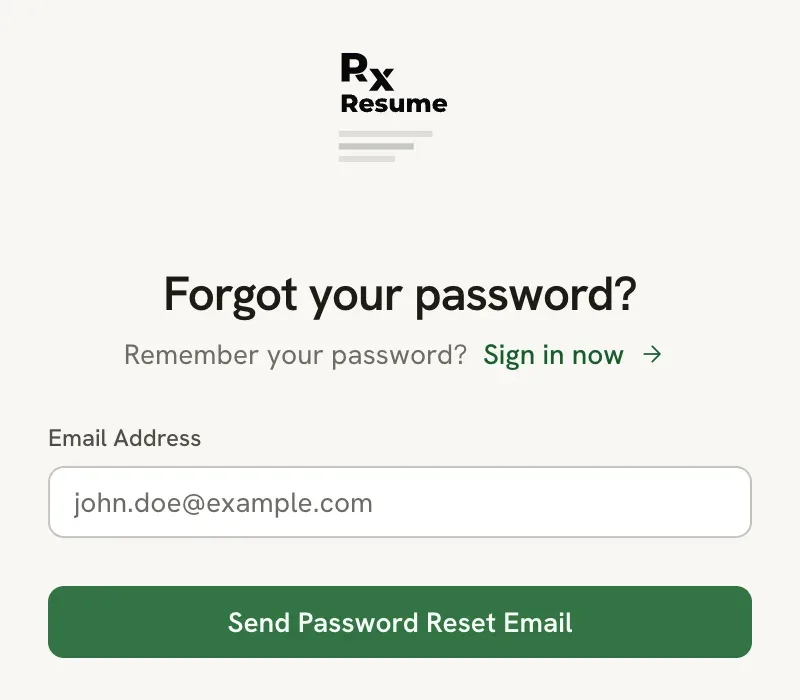
Enter your email and send the link
Type the email address on your account and select Send reset link.
Open the link in the email
On the Reset your password page, enter a New password of at least 8 characters and select Reset password. You return to the sign-in page, where you can use the new password.
Resetting your password signs you out everywhere and removes your passkeys, API keys and the apps you connected, so anyone who got into your account loses access. Create new keys and reconnect apps afterwards. If you had never confirmed your email address, the reset also removes two-step sign-in and linked social accounts that were added before it.
Password reset needs email delivery. On a self-hosted copy without email set up, ask the person who runs it for help.
Enter a two-step code#
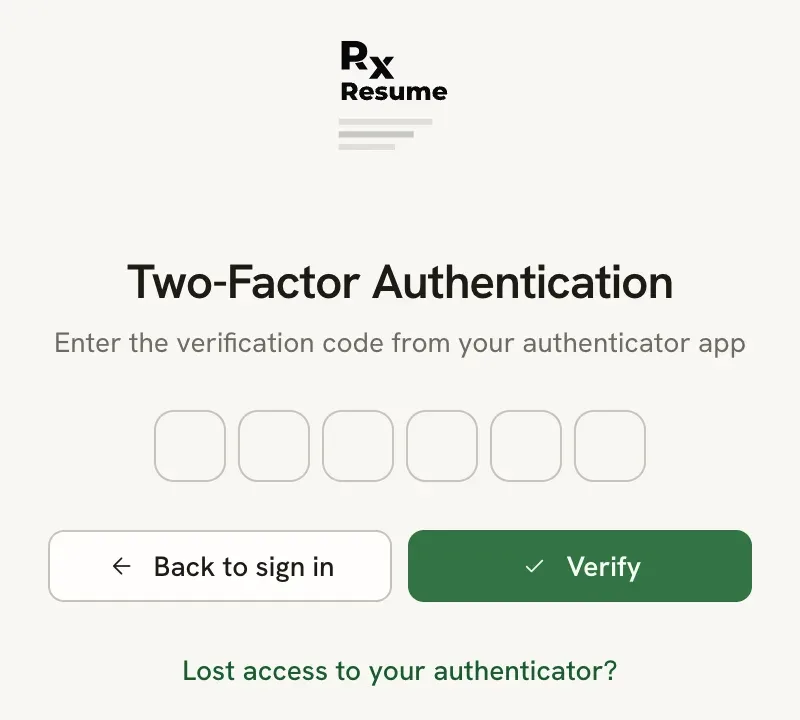
After your password, the Two-step verification page asks for the 6-digit code from your authenticator app. Type it in. The page submits as soon as the sixth digit is in, or you can select Verify.
Use a backup code instead#
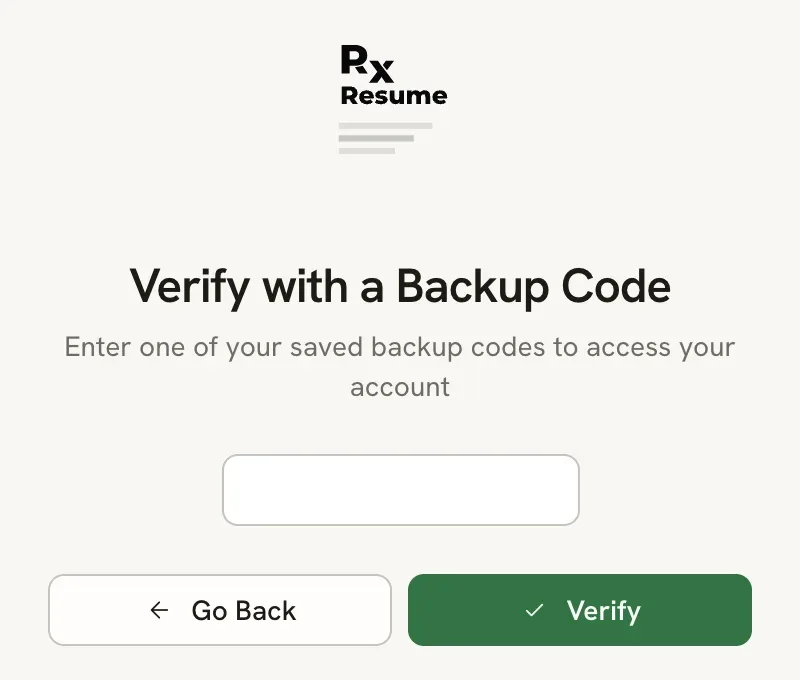
If you don’t have your authenticator app, select Lost access to your authenticator?, enter one of the backup codes you saved when you turned on two-step verification, and select Verify.
Each backup code works once. You can paste it as shown, including the hyphen, or type the two groups together (82cNK-qaOiN or 82cNKqaOiN).
Sign out#
Select your name at the bottom of the sidebar, then Sign out. You can also find Sign out at the bottom of Settings → Account.
Related guides#
- Creating an account: sign up if you don’t have an account yet.
- Setting up two-step verification: turn codes on or off and get backup codes.
- Setting up passkeys: sign in without a password.