

Reactive Resume gives you two ways back. Undo reverses your last few edits while the resume is open. History keeps saved versions of the document on the server, so you can look at yesterday’s resume, or the one you sent to a company, and bring it back.
Undo and redo#
In the resume editor, undo steps back through your changes: typing, adding or deleting entries, moving sections, template and design changes, custom styles, and edits you accept from the Assistant.
| Action | Mac | Windows and Linux |
|---|---|---|
| Undo | ⌘ Z | Ctrl Z |
| Redo | ⌘ Shift Z | Ctrl Shift Z or Ctrl Y |
These shortcuts undo resume-wide changes when your cursor isn’t in a text field. Inside a field, they undo your typing in that field. Click outside the field first to undo a change such as a template switch.
Many actions also show a message with an Undo button right after you make them, for example deleting an entry, switching template, Fit to one page or Reset to template defaults.
How undo behaves:
- Typing groups into one step. Edits to the same field less than a second apart undo together, so one undo removes a phrase rather than a letter.
- Up to 200 steps are kept.
- Undo lasts while the resume is open. Reloading the page or opening the resume again starts a fresh undo history. So does restoring a version, or a change arriving from somewhere else, such as another tab or an API client.
The cover letter editor has no document-wide undo. Use ⌘ Z inside the text you’re editing, or restore a version from History.
Changes that couldn’t be saved, for example because you went offline or closed the tab, are kept on your device. The next time you open the resume, they come back and are saved, and the editor tells you it restored them.
Open History#
On a desktop-width window, select the History icon (a clock) in the editor bar, next to the Assistant icon. History opens in the Download & history panel on its History tab. On a narrower window or a phone, select the resume’s name at the top left to open the document menu, then History.
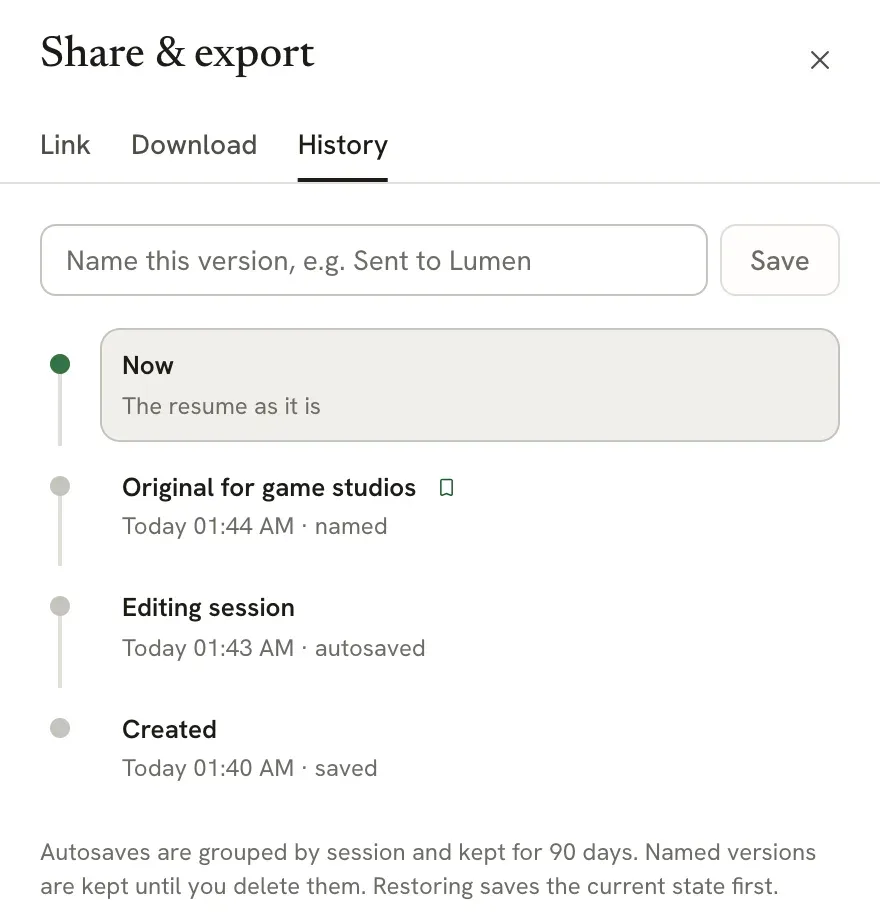
Each version shows a title, when it was saved (for example “Today 14:02”, “Yesterday 09:15” or a date), and how it was saved. History shows the 100 most recent versions.
What gets saved automatically#
You don’t need to save anything for History to work. Versions are added when:
| Title in History | Saved when | Kept |
|---|---|---|
| Created / Imported | You create or import the resume. | Until you delete the resume |
| Editing session | You edit. Each visit to the editor keeps one version with its latest state, refreshed at most every two minutes. | 90 days |
| AI edit | A change arrives through the API, for example from an MCP client or another AI tool connected to your account. Edits you accept from the Assistant in the editor count as part of your editing session. | 90 days |
| Sent to company | An application linked to this resume first moves to Applied, Screening, Interview or Offer. | Until you delete the resume |
| Before restore | Just before you restore a version. | Until you delete the resume |
| Restored a version | Right after you restore a version. | 90 days |
| Your name | You save a named version. | Until you delete it |
Resumes and cover letters both have History. A letter’s versions work the same way; only the kinds that apply to letters appear.
Save a named version#
Name a version before a big change, or when you send the resume somewhere, so it’s easy to find later.
Open History
Type a name
In Name this version, type a short name such as “Sent to Lumen” or “Before tailoring” (up to 80 characters).
Save
Select Save. The version appears in the timeline with a bookmark icon and the detail “named”.
To rename or delete a named version, point to it, select ⋯, then choose Rename… or Delete. Only named versions can be renamed or deleted; the others are kept for as long as the table above says.
Preview and restore a version#
Select a version
Select any version in the timeline. The page shows that version, read-only, and a bar at the top of History says which version you’re viewing.
Restore it, or go back
Select Restore this version to make it your current resume, or Back to now to leave it. Closing the panel also takes you back to now.
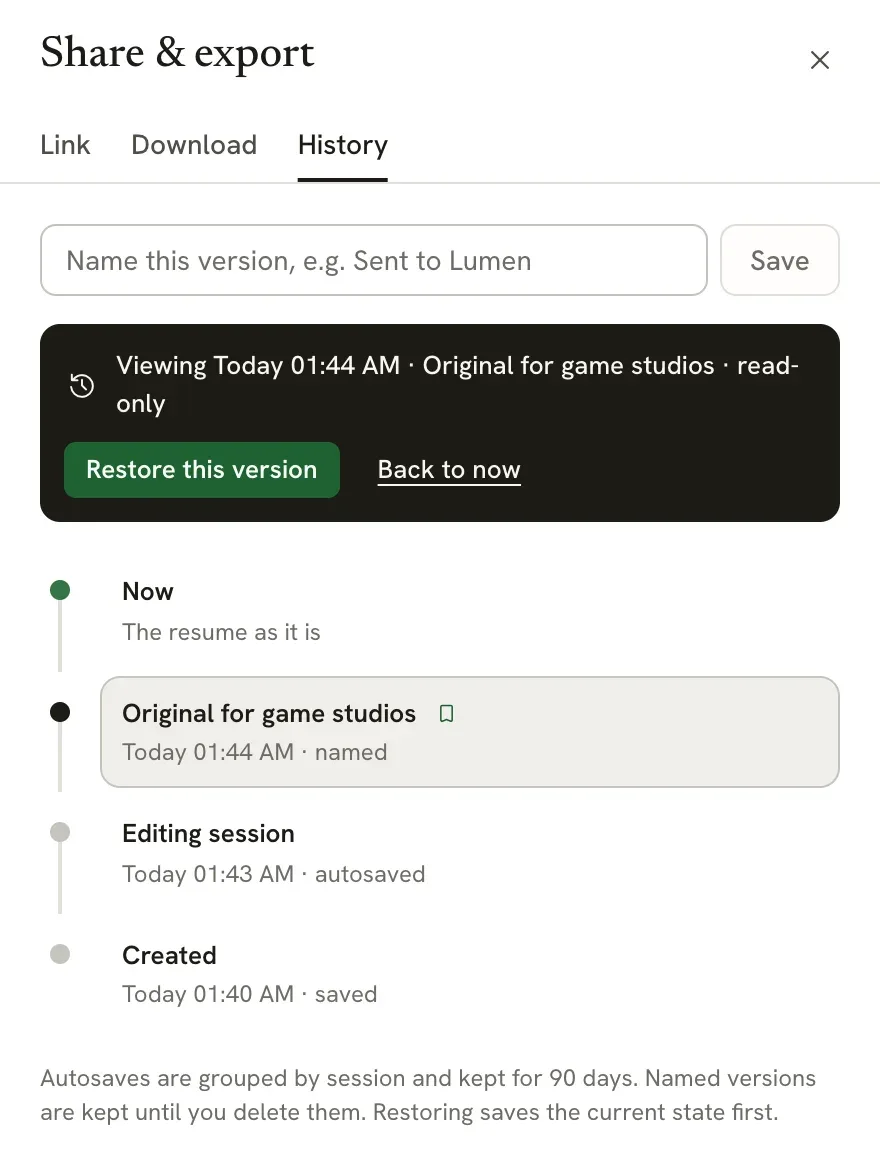
Restoring never throws anything away. Before it replaces your resume, Reactive Resume saves the current state as Before restore, then adds Restored a version after it. To undo a restore, restore Before restore.
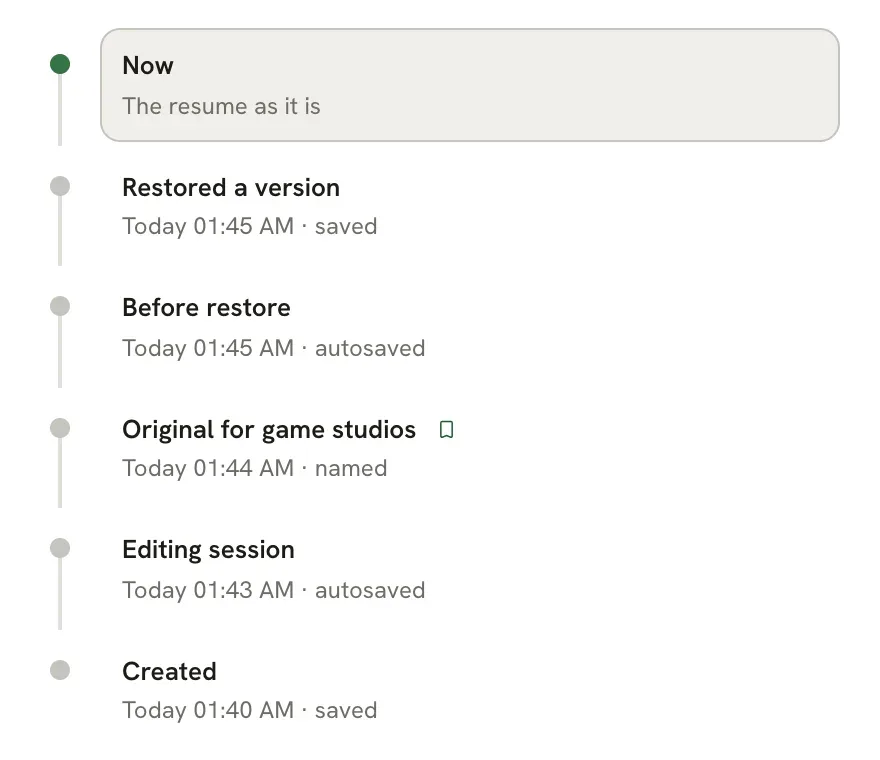
Restoring clears the editor’s undo history, so ⌘ Z can’t reverse it. Use Before restore instead. A locked resume can’t be restored over; select Unlock editing in the document menu first.
A version holds the whole resume: content, design, custom styles and private notes. Its public link settings aren’t part of it.
Browser recovery copies#
If saving a resume fails, a recovery copy may stay in this browser for up to seven days. Successful sign-out or account deletion clears these copies, saved contact snapshots and career drafts from browser storage. Save or export unfinished work before signing out. Server-saved versions follow the History retention rules above.
Related guides#
- Tracking job applications: applications keep the exact version you sent.
- Using the Assistant: accepted edits can be undone like any other change.
- Keyboard shortcuts: every editor shortcut in one place.