

In this tutorial you’ll create a Reactive Resume account, open a sample resume, put your own name on it, try a different template and download it as a PDF. It takes about ten minutes, and at the end you’ll know your way around the editor.
You only need a web browser. The steps use the hosted version at rxresu.me; if your organization runs its own copy, use its address instead.
1. Create your account#
Open the sign-up page
Fill in your details
Enter your Name, a Username, your Email address and a Password, then select Sign up. If you’d rather use an existing Google, GitHub or other account, pick it below the form instead.
Continue to your documents
Reactive Resume sends you an email to verify your address. Verifying is optional, but you need it to reset a forgotten password. Select Continue to carry on now and verify later.
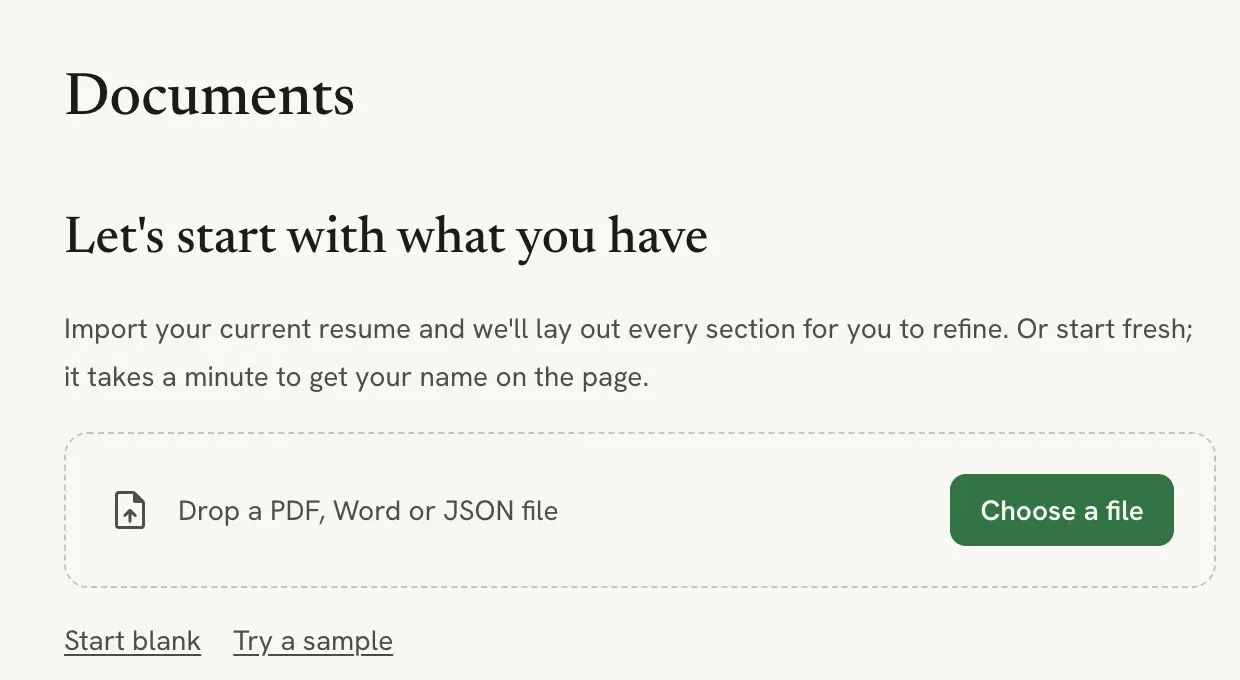
You land on Documents, the home page that holds all your resumes and cover letters. It’s empty for now.
2. Open the sample resume#
Select Try a sample. Reactive Resume creates a complete resume for a game developer and opens it in the editor.
Starting from the sample lets you see what a finished resume looks like before you replace its content with yours. The editor has two halves:
- The panel on the left, where you write. It starts with the Basics card (your name and contact details), followed by your sections, such as Summary, Education and Experience.
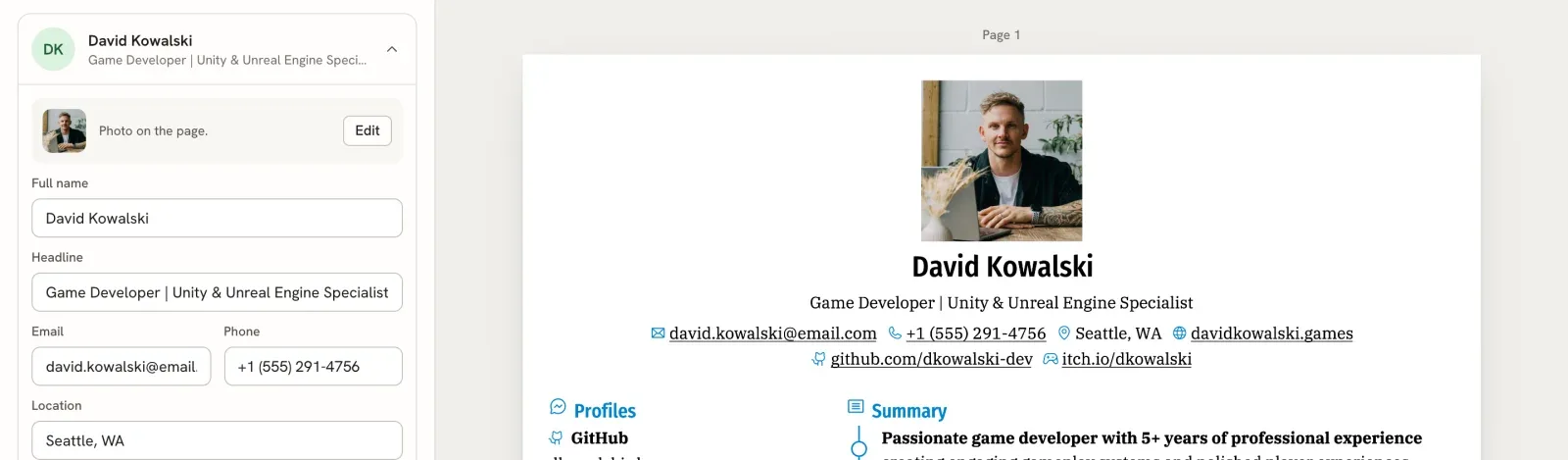
- The page on the right, which shows exactly what your PDF will look like. It updates as you type.
The sample’s document name and the name on the resume are a random three-word phrase, such as “Slippery Blush Marlin”. You’ll fix both next.
3. Name your document#
The document name is only for you; it’s how you find the resume in Documents.
Open the document menu
Rename it
Select Rename…, type a name such as “Game Developer Resume” in Name, then select Save Changes.
4. Put your name on the page#
Edit the Basics card
In the Basics card, replace the text in Full name with your own name.
Watch the page
The name at the top of the page changes as you type. Try changing Headline to the job title you want too.
You don’t need to save. Under the document name, the status changes to Saving… and then Saved.
Made a mistake? Press ⌘ Z (Ctrl Z on Windows and Linux) to undo it.
5. Try another template#
Switch to Design
Select Design at the top of the editor, or press 2.
Pick a template
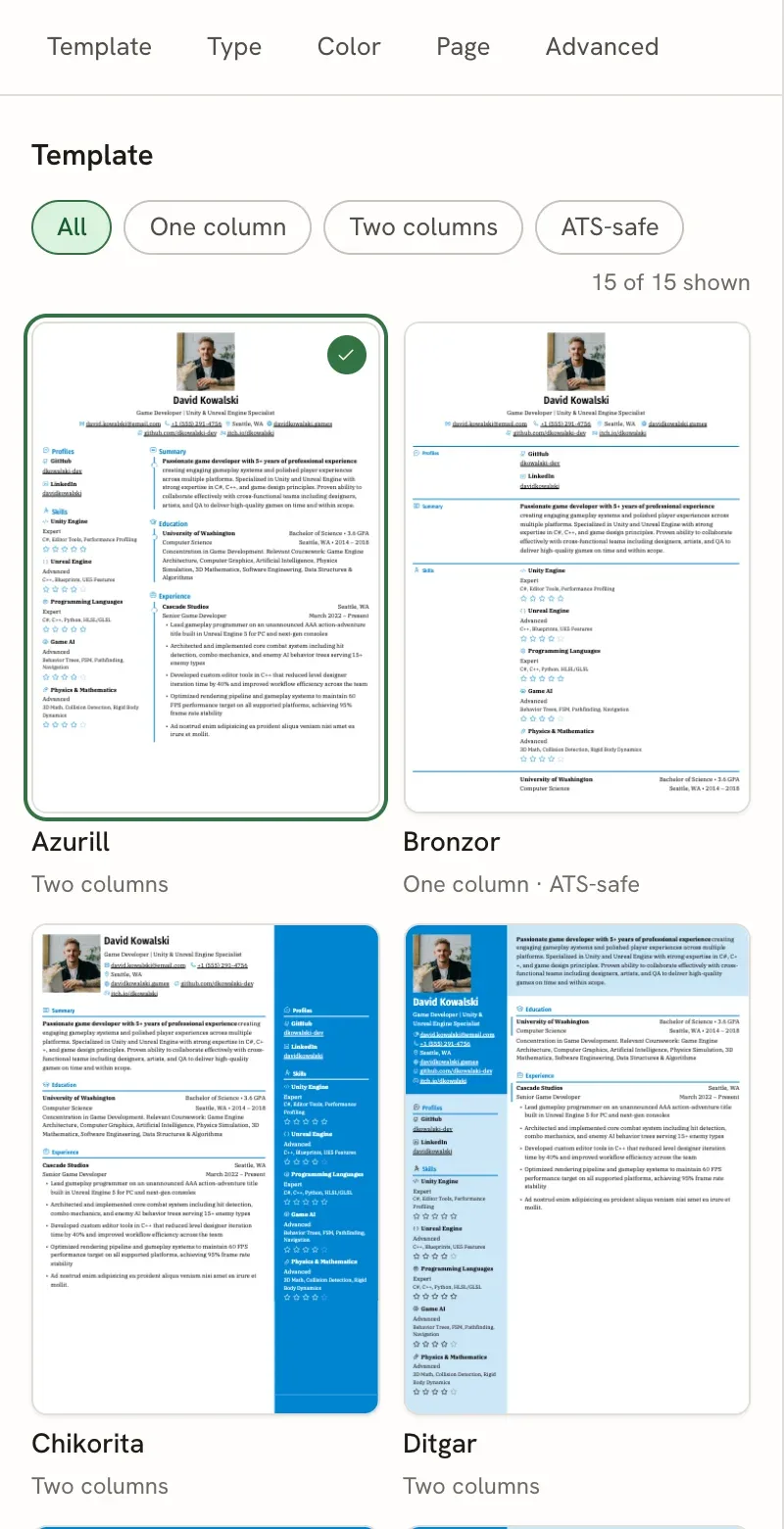
Template, at the top of Design, shows all 18 templates filled with your own content. Select one, such as Bronzor, and the page switches to it. Your content stays the same; only the look changes.
Go back to writing
Select Write, or press 1, to return to your content.
6. Download your PDF#
Select Download PDF
Select Download PDF at the top right of the editor. Your browser saves the file, named after the name on your
resume (for example, David-Kowalski-Resume.pdf).
Open the file

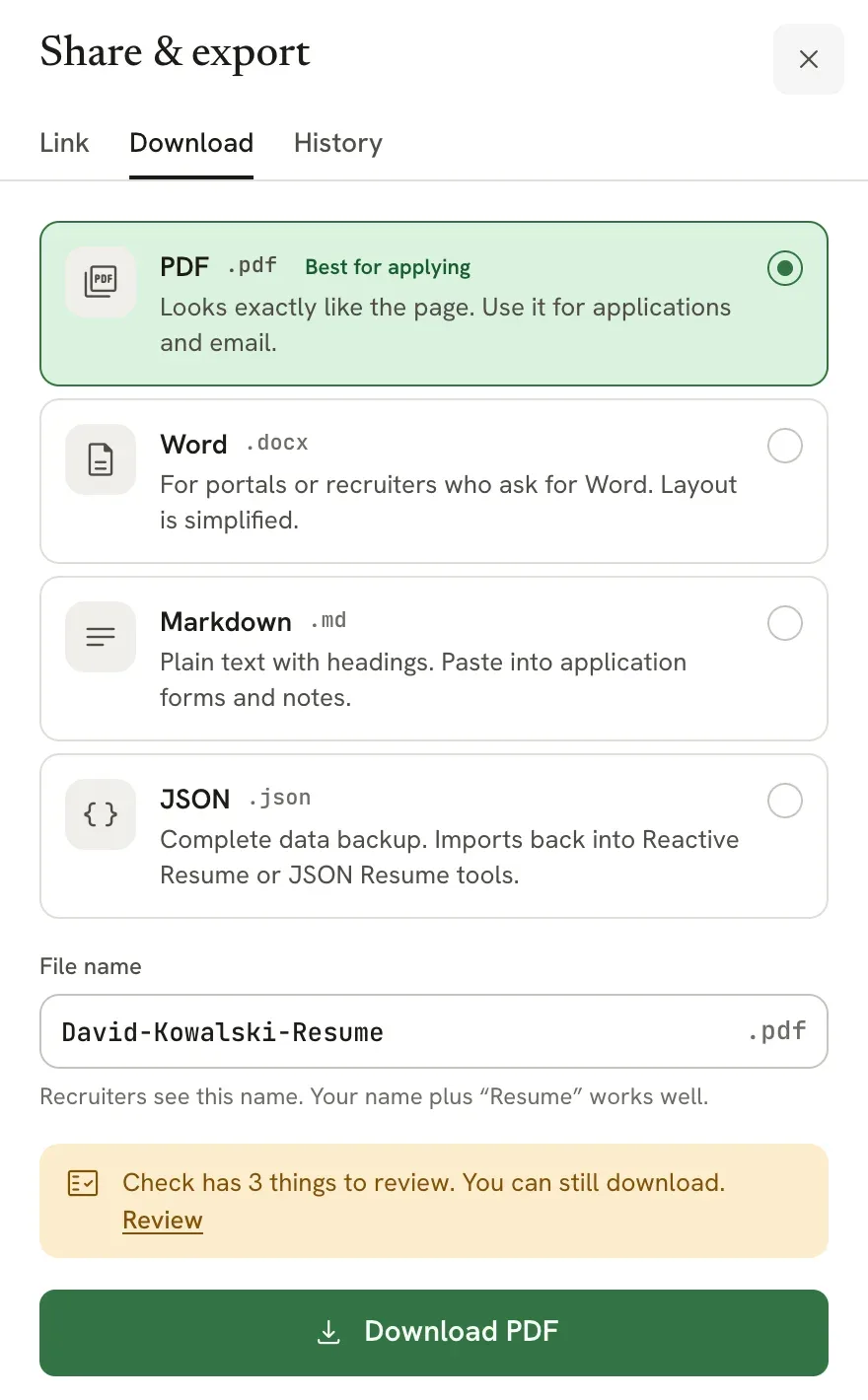
To download a different format, select the arrow next to Download PDF. The Download & history panel opens on its Download tab, where you can choose PDF, Word, Markdown or JSON and change the file name.
What you’ve done#
You created an account, built a resume from the sample, made it yours, tried a template and downloaded a PDF. From here, replace the rest of the sample with your own experience, or start a fresh resume from New in the sidebar (press N).
Next steps#
Start from scratch, or import the resume you already have.
Learn the editor bar, the four modes and the page view.
Fix the issues Check finds and compare your resume with a job posting.
Publish a link that recruiters can open in their browser.
Run your own copy#
Want to host Reactive Resume on your own server instead? Follow Self-hosting with Docker, or skip the setup with a 1-click deploy on Hostinger. The environment variables reference lists every setting. Developers who want to change the code should start with the development setup.