

You can choose how the app looks and which language its menus and buttons use. These settings change the app only. Your resumes always print on white paper, in the language set for each resume.
Change the theme#
Open Preferences
Select your name at the bottom of the sidebar, then Settings, then Preferences.
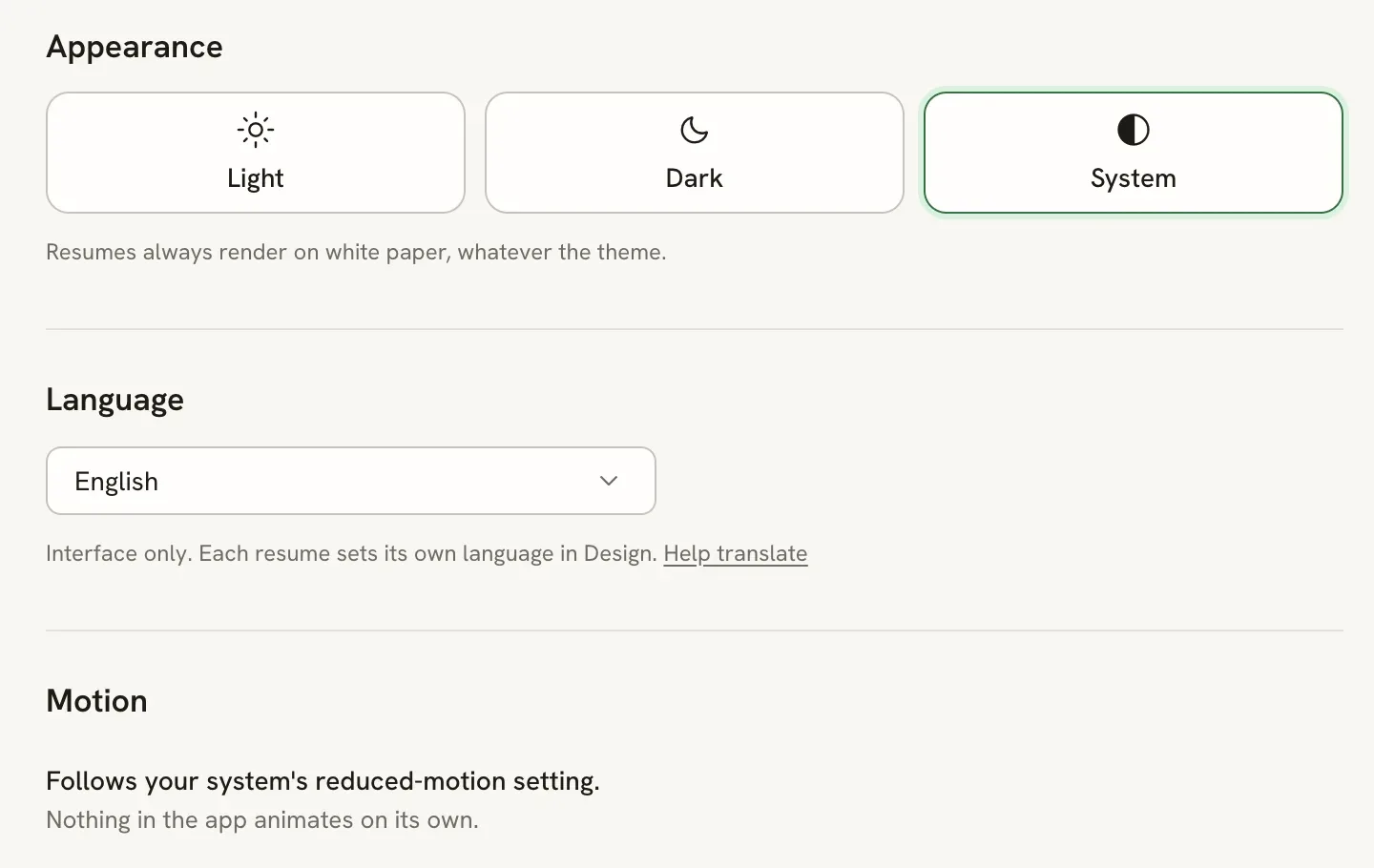
Pick a theme under Appearance
- Light: a light background all the time.
- Dark: a dark background all the time.
- System: follows your device’s light or dark setting and switches when it does. This is the default.
The change applies at once. Reactive Resume remembers it in this browser, so another device or browser keeps its own choice.
Other ways to switch#
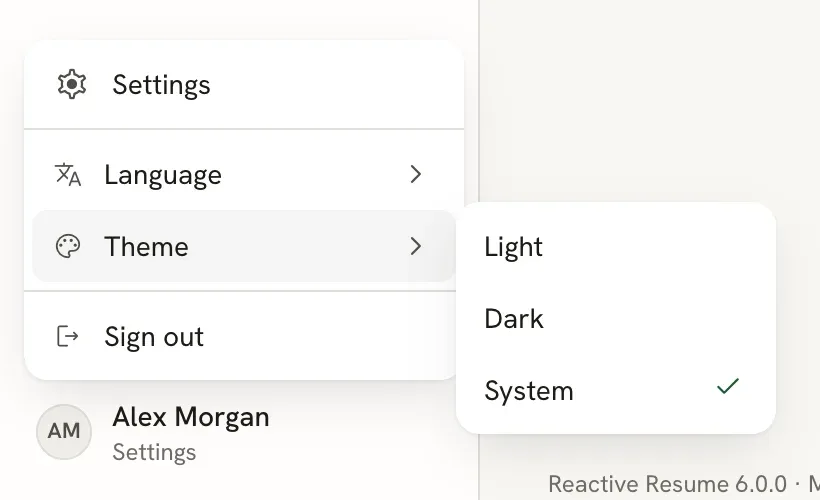
- Select your name at the bottom of the sidebar, point to Theme, and choose Light, Dark or System.
- Press ⌘ K (Ctrl K on Windows and Linux), choose Change theme to…, then pick a theme.
Change the interface language#
Open Preferences
Go to Settings → Preferences.
Choose a language under Language
Open the picker and choose from more than 50 languages. You can type to filter the list.
The page reloads in the new language. Like the theme, the choice is saved in this browser.
You can also change it from your name in the sidebar (Language), or with ⌘ K and Change language to….
The interface language doesn’t translate your resume. Each resume has its own Language setting in the Page group of the editor’s Design mode, which sets the section titles and date words on the page. See Set the language.
Spotted a wrong or missing translation? Select Help translate under the language picker to suggest a fix on Crowdin. See Translations.
Set your timezone#
Go to Settings → Preferences and pick your timezone under Timezone. Interview times, reminders and schedules in Career use it. New accounts start on UTC; when your device is set to another timezone, Use this device’s timezone switches to it in one step. The change is saved at once.
Reduce motion#
Reactive Resume has no motion switch of its own. It follows your operating system’s reduced-motion setting: turn that on, and the app replaces movement with simple fades. Nothing in the app animates on its own without you doing something first.
Related guides#
- Using the command bar: change settings and jump anywhere from the keyboard.
- Updating your profile: your name, photo, username and email.