

A section is one block of your resume, such as Experience, Education or Skills. In Write mode you add the sections you need, put them in the order you want them printed, and choose how each one looks on the page. This guide covers everything you can do with a whole section. To work with the entries inside a section, see Editing entries.
Where your sections live#
Open a resume and select Write in the editor bar. Below the Basics card is the Sections · print order list. It shows every section that has content, in the order it prints: page by page, and within each page the main column first, then the sidebar. Sections you’ve hidden from the page are kept together in a Hidden sections group at the end of the list.
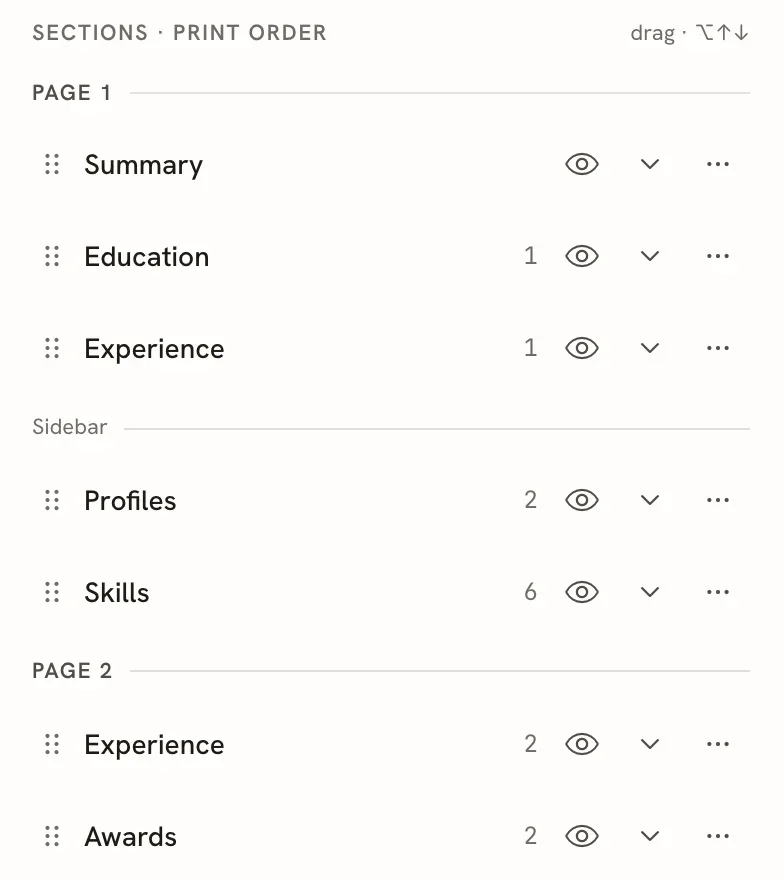
Each row has, from left to right:
- A drag handle to reorder the section.
- The section title. Select it, or the chevron, to open the section and see its entries.
- The number of entries in the section.
- The eye icon, which hides or shows the section on the page.
- The ⋯ menu with the rest of the section’s options.
Dividers mark where a new page starts (Page 2, Page 3) and, on templates with two columns, where the Sidebar begins. Built-in sections without any content aren’t listed; they wait in Add section until you need them.
Add a section#
Open Add section
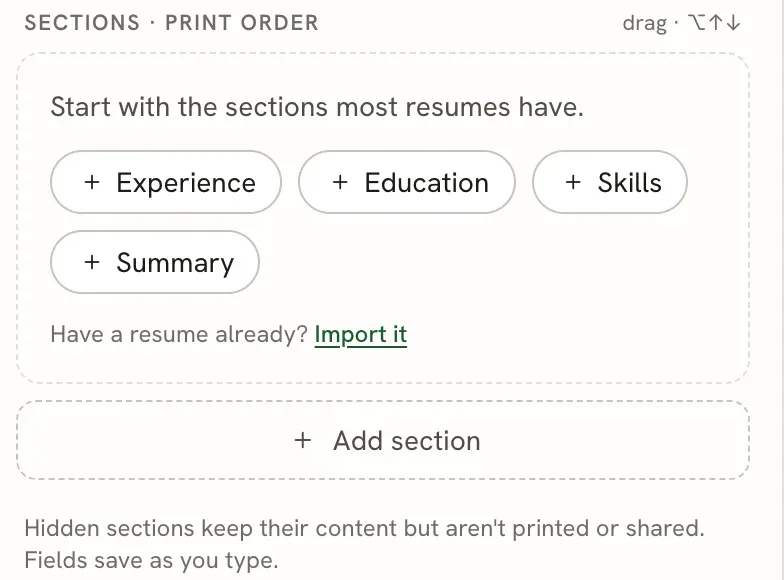
Scroll to the bottom of the sections list and select Add section. The menu lists every built-in section you aren’t using yet.
On a brand-new blank resume you also see shortcuts for the sections most resumes have: Experience, Education, Skills and Summary. Select one to add it straight away.
Choose a section
Select the section you want. It appears in its usual place in the layout (Skills, for example, goes in the sidebar on two-column templates) with one empty entry, already open and ready to type into. The Summary opens as a single text box instead.
A new entry stays a Draft until you fill in its main field, such as the company for a job or the school for a degree. Drafts are saved but don’t print. See Editing entries for the fields each section has.
Create a custom section#
Use a custom section when none of the built-in names fits, or when you want a second section of the same kind, such as “Earlier Experience” or “Teaching”.
Open the Custom section menu
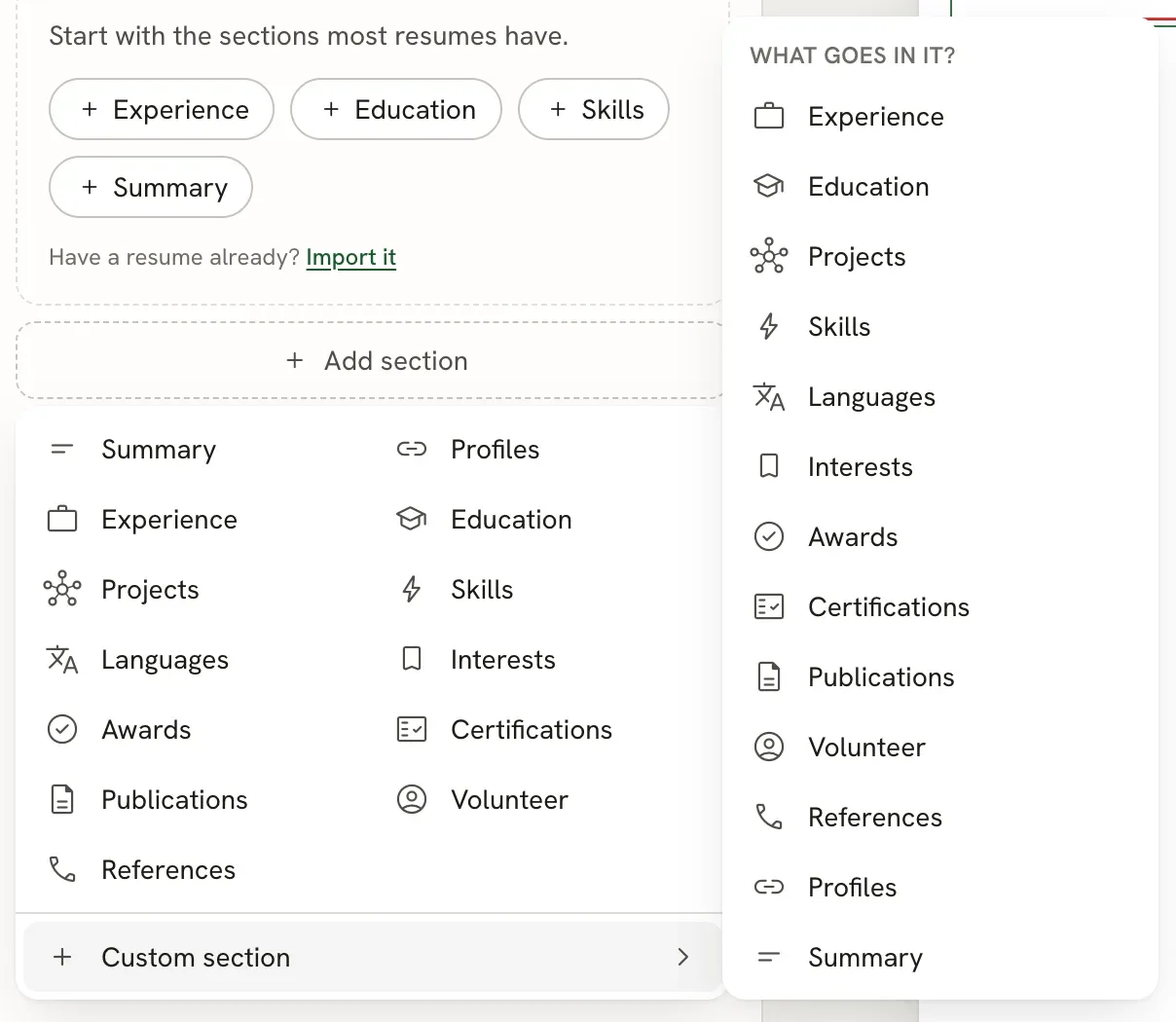
Select Add section, then Custom section. The menu asks What goes in it?
Pick the kind of entries
Choose the type whose fields you want: Experience, Education, Projects, Skills, Languages, Interests, Awards, Certifications, Publications, Volunteer, References, Profiles, or Summary for a block of free text.
Rename it
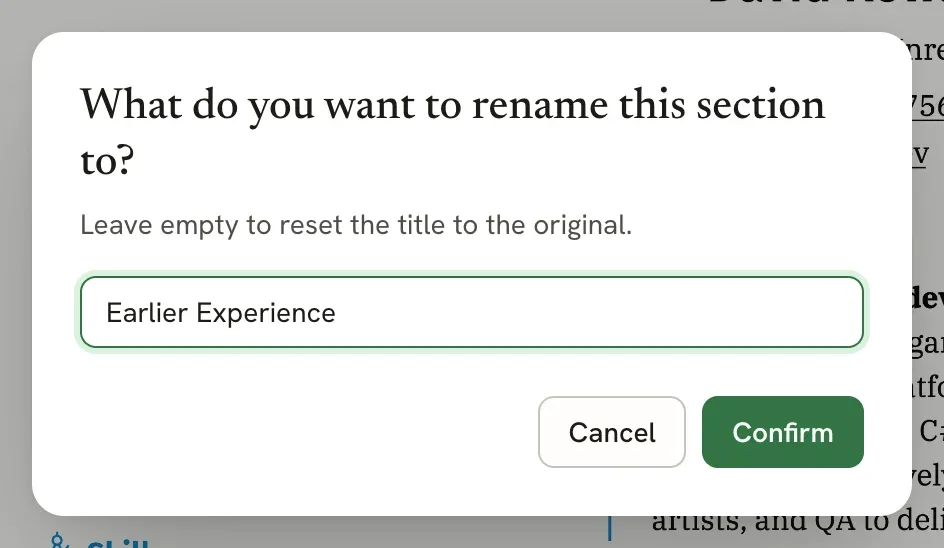
The new section is added at the end of your last page and takes the type’s name. Open its ⋯ menu and select Rename… to give it your own title.
Hide or show a section#
Select the eye icon on a section’s row. The section moves to a Hidden sections group at the end of the list: its title is struck through and its drag handle is dimmed. Its content stays in the resume, but it isn’t printed, downloaded or shared. Select the eye again to bring the section back; it returns to its usual place in the print order.
To hide a single entry instead of the whole section, use Hide from page in the entry’s menu. See Editing entries.
Reorder sections#
The list order is the print order, so moving a row moves the section on the page. You can:
- Drag a row by its handle.
- Select the section’s title and press ⌥ Option + ↑ or ↓ (Alt + ↑ or ↓ on Windows and Linux).
- Open the ⋯ menu and select Move up or Move down.
Hidden sections keep their place and can’t be moved until you show them again.
Moving a section past a divider moves it onto that page or column. For example, dragging a section below the Sidebar divider puts it in the sidebar. To change the columns, sidebar width or number of pages themselves, see Arranging the layout.
Section options#
Open a section’s ⋯ menu to see everything else you can do with it.
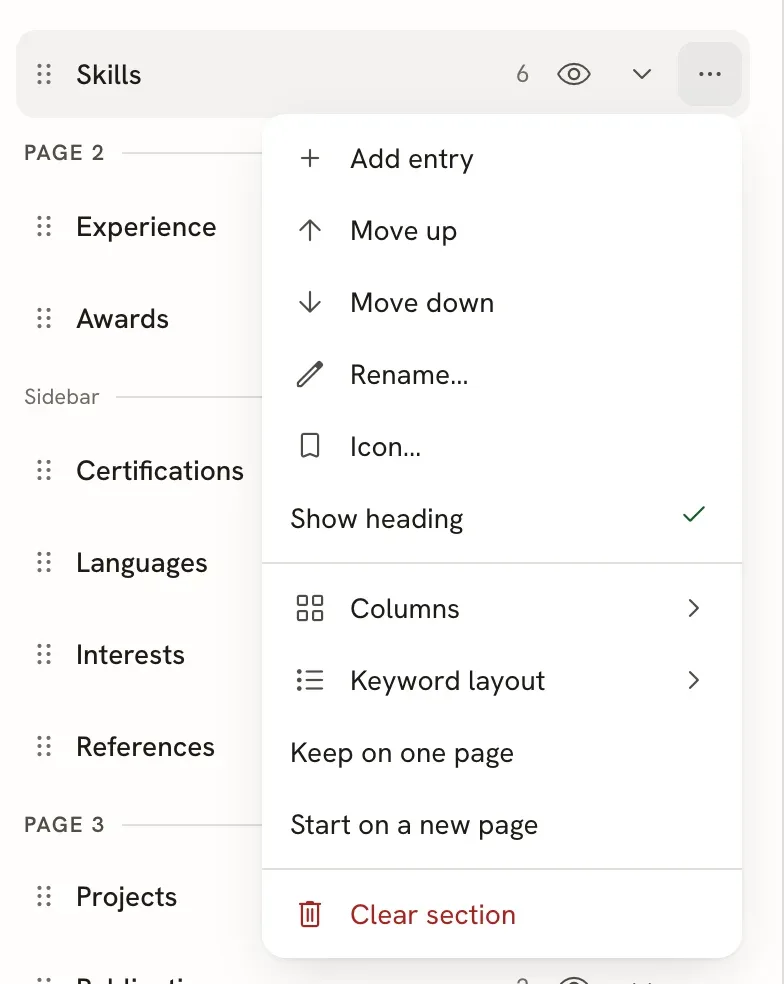
| Option | What it does |
|---|---|
| Add entry | Adds an empty entry at the end of the section. Not shown for the built-in Summary. |
| Sort by date | Experience and Education only. Puts current entries first, then the rest from the most recent end date back. Entries without a start date, or whose end comes before the start, stay at the end, and a message names them. |
| Move up / Move down | Moves the section one place in the print order. |
| Rename… | Changes the title printed above the section. Leave the name empty to go back to the original title. |
| Icon… | Picks the icon shown next to the section title, on templates that show section icons. |
| Show heading | Clear it to print the section without its title. |
| Columns | Splits the section’s entries into 1 to 6 columns. Skills also offers 1 column, inline, which runs the skills together on one line. |
| Keyword layout | Skills only. Prints each skill’s keywords Inline or as a Bulleted list. |
| Keep on one page | Stops the section from being split across two pages. |
| Start on a new page | Always starts the section at the top of a new page. |
| Clear section | Built-in sections: removes all entries (or the Summary text). |
| Delete section | Custom sections: removes the section and its entries. |
Remove a section#
Open the section’s ⋯ menu and select Clear section (built-in sections) or Delete section (custom sections). A message confirms the change with an Undo button, in case you didn’t mean it. A cleared built-in section leaves the list and goes back into Add section, so you can add it again later.
If you only want a section off the page for now, hide it with the eye icon instead. Hiding keeps everything you wrote.
You can also undo any section change with ⌘ Z (Ctrl Z on Windows and Linux) while no text field is focused, or go back further from History. See Undoing changes and version history.
Related guides#
- Editing entries: add, duplicate, move and hide the entries inside a section.
- Entering dates: how dates are typed, checked and printed.
- Arranging the layout: columns, sidebar, pages, and moving sections between pages.
- Fitting content on a page: what to do when your resume runs long.