

Your profile is the name, photo, username and email tied to your account. You can change any of them in Settings → Account. This page also covers changing your password.
Your profile is separate from your resumes. Changing your account name or photo does not change the name or photo on any resume. Those live in each resume’s Basics section.
Open your profile#
Select your name at the bottom of the sidebar, then Settings. Account opens first, with Profile at the top.
On a phone, Settings opens a short list first. Tap Account.
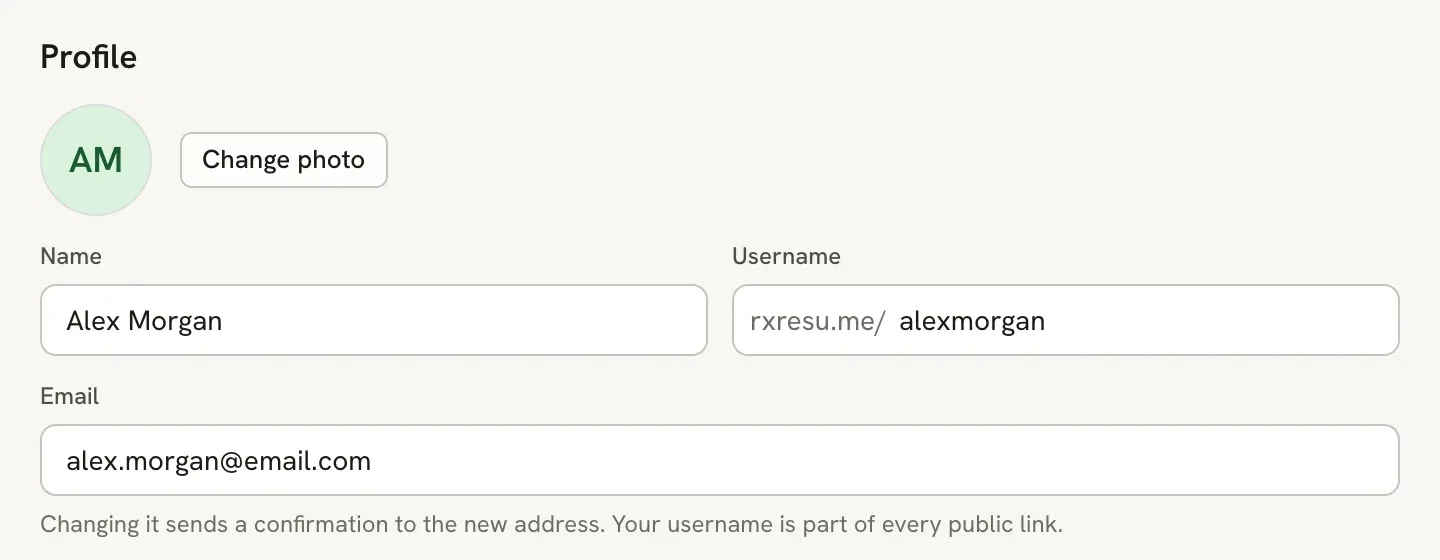
Change your name, username or email#
Click a field, type the new value, then press Enter or click anywhere else. The change saves as soon as you leave the field. Press Esc before leaving to undo what you typed.
If a value can’t be saved, it stays in the field with the reason underneath, for example when a username is already taken.
- Name: up to 64 characters. Shown in the app, not on your resumes.
- Username: 3 to 64 characters, using lowercase letters, numbers, dots, hyphens and underscores. The field shows your site address in front of it, because the username is part of every public resume link.
- Email: see below. Changing it takes an extra step.
Changing your username changes the address of every public resume. Links you have already shared, such as the one on a job application, stop working. Share the new links after the change. Your old username stays reserved for you for 30 days, so nobody else can take it and its links in that time.
Confirm a new email address#
When you change Email and your current address is verified, Reactive Resume first sends an approval link to the current address, so nobody else can move your account. Open it, then open the confirmation link that arrives at the new address. Your account keeps the old address until both are done. Check both inboxes, including spam.
If your current address isn’t verified, the confirmation link goes straight to the new address.
If your current address isn’t verified yet, the hint under the field offers Not verified yet. Resend the link. On self-hosted copies without email delivery, the hint says the address can’t be verified instead.
Change your photo#
Select Change photo and choose an image. It uploads right away and replaces your initials across the app. Images up to 10 MB work; the site usually shrinks them to fit 800 × 800 pixels. Select Remove photo to go back to your initials.
Change your password#
Open the password dialog
In Sign-in & security, next to Password, select Change.
Enter your current and new password
Fill in Current password and New password. The new password must be different from the current one and at least 8 characters long. Select Sign out of all other devices to revoke your other sessions when changing it.
Select Change password
A message confirms the change. You stay signed in on this device.
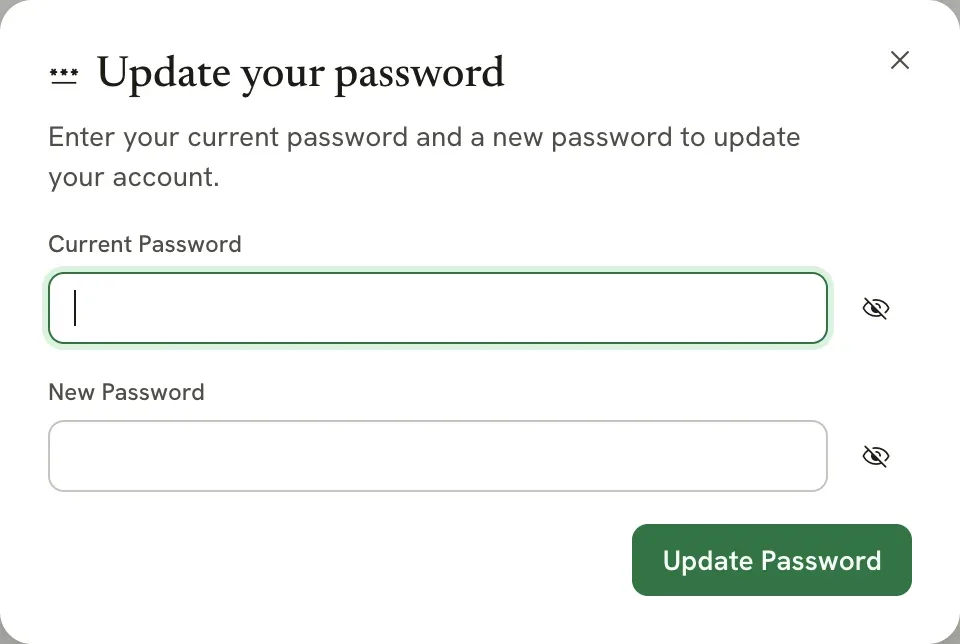
If you signed up with a social account, the Password row reads You sign in without one, and the button says Set a password. It takes you to the password reset page, where you can have a link emailed to you to create one.
Related guides#
- Linking social accounts: sign in with Google, GitHub or LinkedIn.
- Changing appearance and language: theme and interface language.
- Filling in your details: the name, photo and contact details on a resume.