
Markdown is plain text with a few symbols for headings, lists and links. A Markdown export gives you the words of your resume without its design, which is what you want when you paste into a form, feed an AI tool or keep your resume in a notes app.
For applying to jobs, download a PDF instead. See Downloading your resume.
Download the Markdown file#
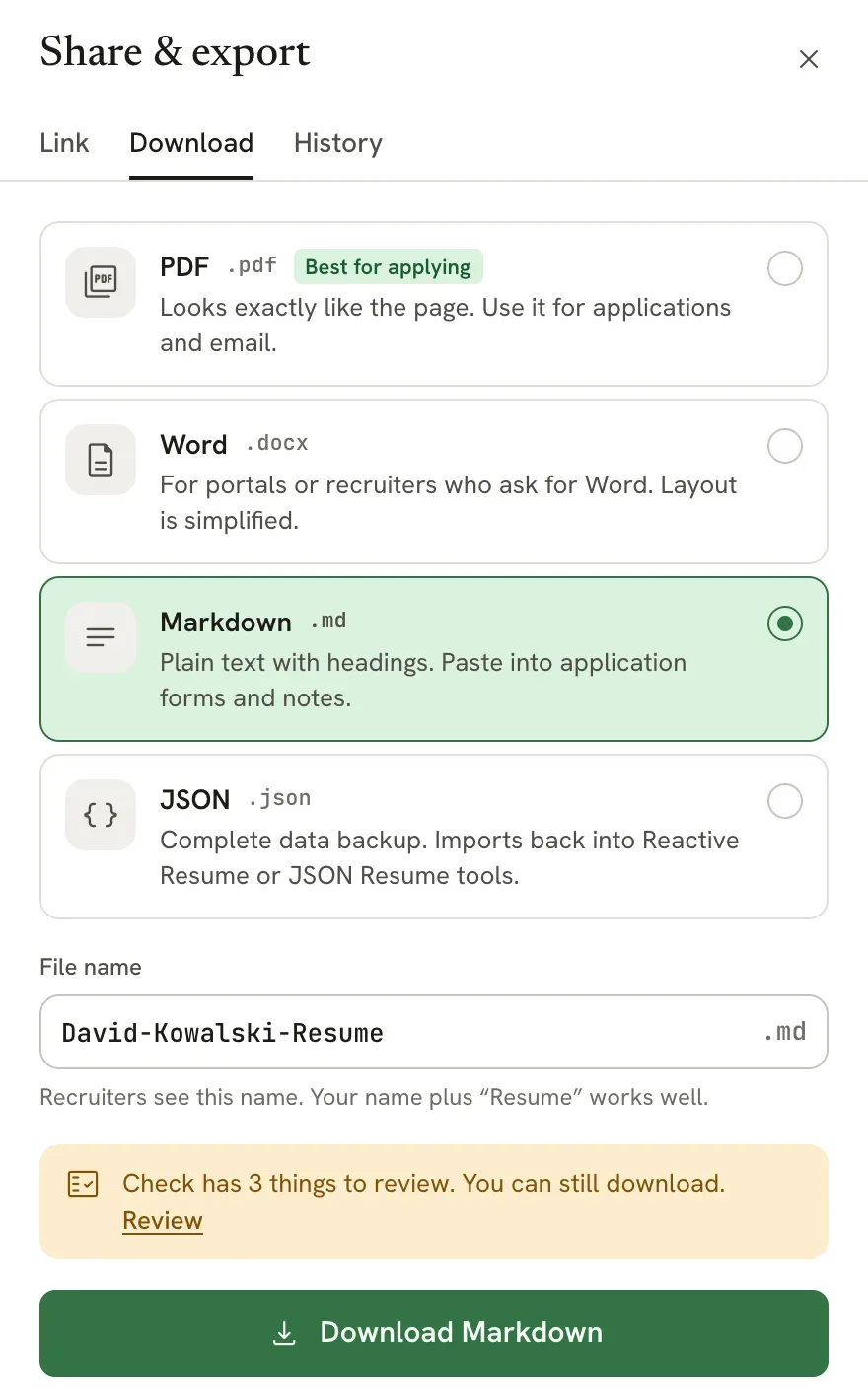
Open the Download tab
In the editor, select the arrow beside Download PDF, or press ⌘ ⇧ E ( Ctrl Shift E on Windows and Linux).
Choose Markdown
Select Markdown. The file name ends in .md; change the name in File name if you like.
Download
What the file looks like#
This is the start of a Markdown export of the sample resume, shortened:
Your name becomes the top heading and each section a second-level heading. Entries such as jobs, schools and projects get a third-level heading with their dates; shorter entries such as skills, languages and profiles become one bullet each. Sections follow your pages in order, the main column first and then the sidebar.
What’s included#
The file keeps:
- your name, headline and contact details;
- every visible section and entry, with section titles in your resume’s language;
- paragraphs, numbered and nested lists, links, bold, italic and strikethrough text. Underline is kept as HTML
<u>markup where the Markdown viewer supports it.
It leaves out:
- hidden sections and entries;
- your photo;
- the template, fonts, colors, columns, icons and page breaks.
Ways to use it#
| Use | Why Markdown helps |
|---|---|
| Application forms | Many job portals have plain text boxes. Markdown pastes cleanly, without the stray characters a PDF copy often brings. |
| AI tools | Headings and lists give an AI tool clear structure, without the layout noise of a PDF. Paste the job description alongside it and ask for suggestions. |
| Notes apps | Apps such as Obsidian use Markdown, so your resume can sit next to your interview notes. |
| Websites and GitHub | Many site builders take Markdown, and GitHub displays .md files, for example in a profile README. |
| Version control | Plain text shows clearly what changed from one version to the next. |
Reactive Resume has its own AI assistant that can edit your resume directly. See Using the assistant.
If an AI tool rewrites your Markdown, review the changes, then copy the parts you want back into the editor. Reactive Resume doesn’t import Markdown files.
Related guides#
- Downloading your resume: PDF, Word and JSON, and when to use each.
- Sharing your resume with a link: send a link instead of a file.